
Change Password
Change Password
The Change Password feature allows users to enhance account security by creating a new, stronger password.
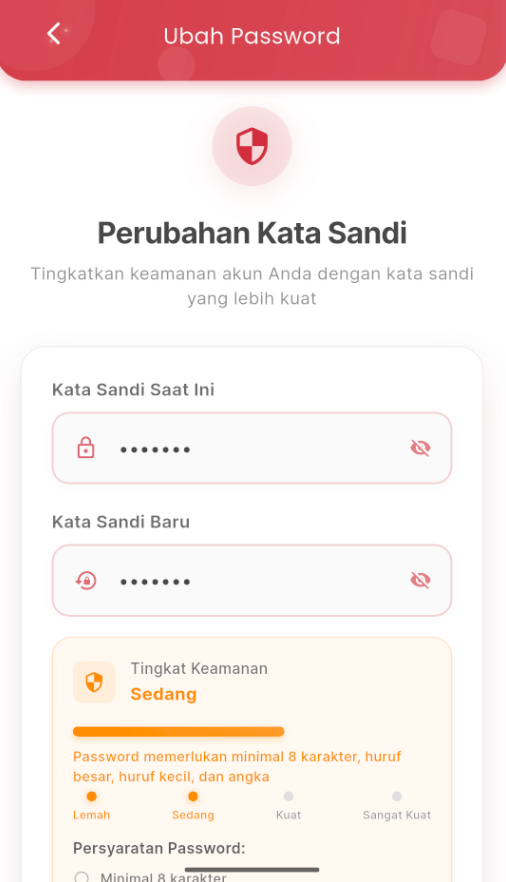
- Open the Change Password page through the settings menu.
- Enter your current password in the first field.
- Enter the new password you want to use.
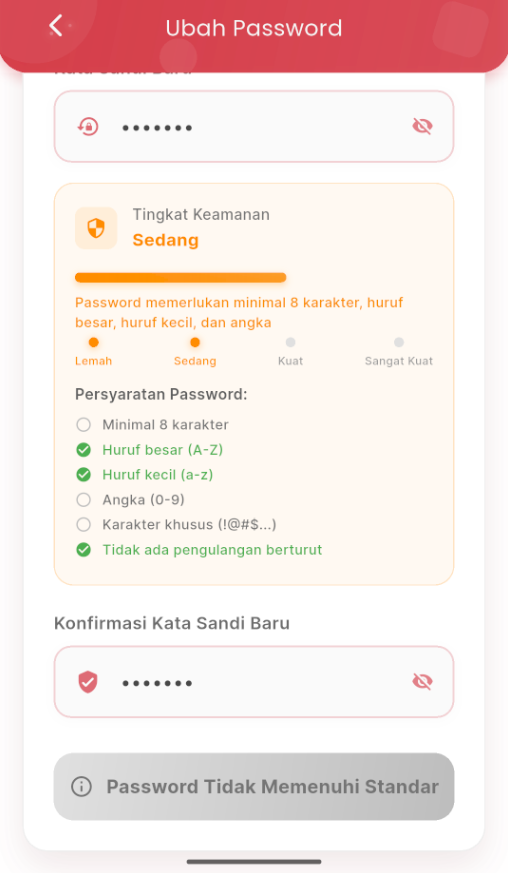
- The system will automatically assess the security level of your new password (Weak, Medium, Strong, or Very Strong).
- To proceed, the new password must meet the following requirements:
- Minimum 8 characters
- Contains uppercase letters (A–Z)
- Contains lowercase letters (a–z)
- (Optional, but recommended): Numbers (0–9) and special characters (!@#$...)
- Does not contain consecutive character repetitions (e.g.: aaa, 123)
- Re-enter the new password confirmation to ensure there are no typos.
- If the password does not meet the standards, the save button will be disabled and a warning message will appear: "Password Does Not Meet Standards".
- If the password meets the standards, the save button will be active and the message "Update Password" will appear.
Security Tips:
Use a combination of uppercase letters, lowercase letters, numbers, and symbols to create a stronger and harder-to-guess password.